Quick Answer
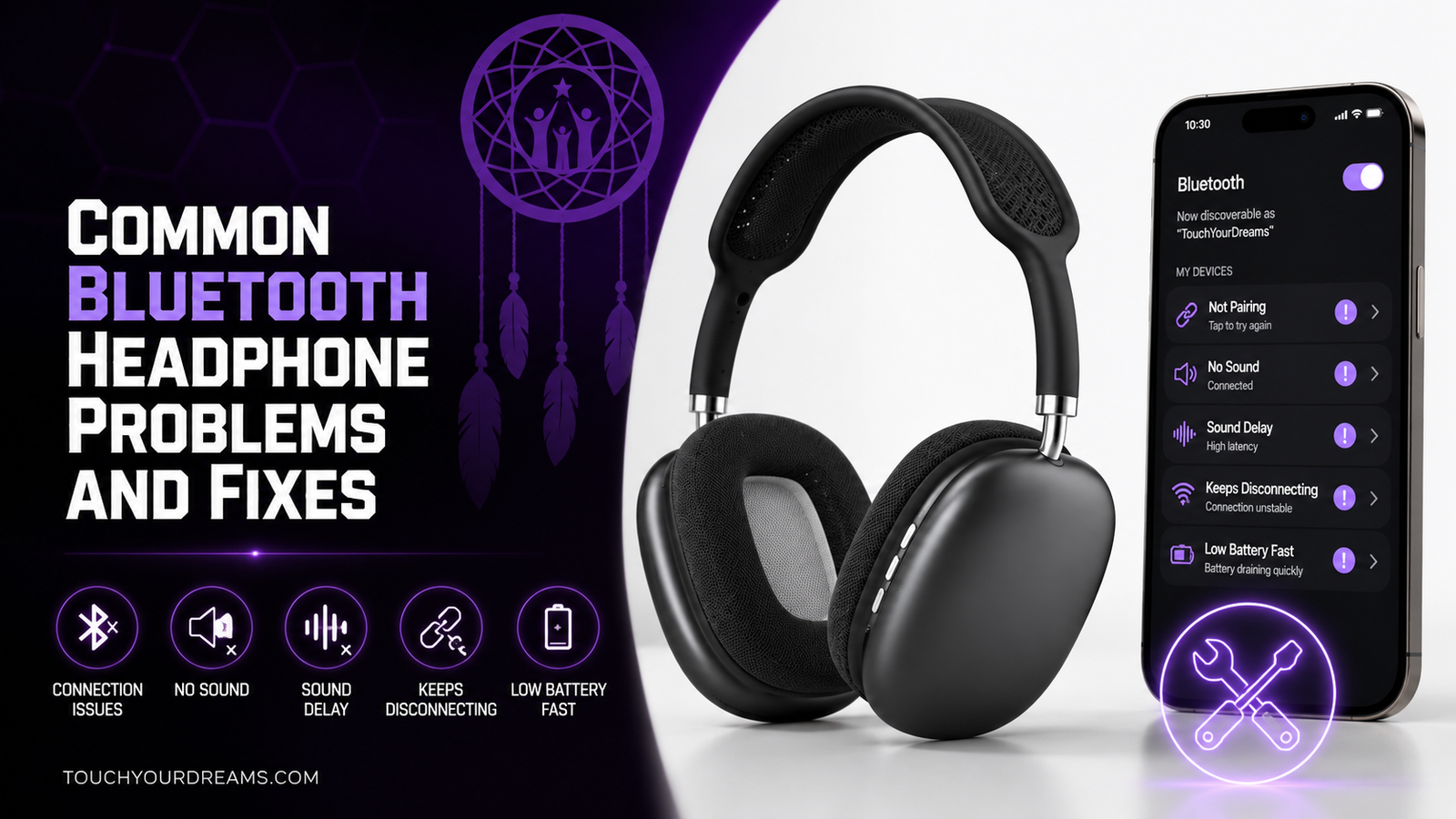
Most Bluetooth headphone problems are caused by pairing conflicts, wireless interference, outdated software, or syncing issues — not broken hardware. The fastest fixes usually involve restarting the device, re-pairing the headphones, updating firmware, or performing a factory reset.
If your headphones:
- Won’t connect → remove and reconnect them
- Keep disconnecting → check interference and battery level
- Lag during audio → reduce wireless congestion or use low-latency mode
- Only play in one ear → reset and resync the earbuds
- Have microphone issues → check permissions and audio settings
The Most Common Bluetooth Headphone Problems
| Problem | Most Common Cause |
|---|---|
| Won’t connect | Pairing conflicts |
| Random disconnects | Weak signal or low battery |
| Audio lag | Bluetooth latency |
| One earbud not working | Syncing failure |
| Muffled sound | Incorrect audio profile |
| Microphone not working | Permission or driver issues |
| Distorted audio | Interference or codec problems |
Why Bluetooth Headphones Stop Working Properly
Bluetooth headphones rely on:
- Wireless signals
- Software communication
- Audio codecs
- Device compatibility
Small issues in any of those areas can create frustrating problems.
The good news is that most Bluetooth issues are software-related and fixable at home.
How to Fix Bluetooth Headphones That Won’t Connect
1. Restart Both Devices
Turn off:
- The headphones
- The phone, PC, console, or tablet
Then restart both and try pairing again.
This solves many temporary Bluetooth glitches.
2. Remove Old Pairings
Devices sometimes get stuck trying to reconnect to old saved profiles.
Go into Bluetooth settings and:
- Forget the headphones
- Re-enter pairing mode
- Pair from scratch
This often fixes stubborn connection issues.
3. Make Sure the Headphones Are Actually in Pairing Mode
Many headphones require holding the power button for:
- 5–10 seconds
- Until a flashing LED appears
Simply turning them on is often not enough.
4. Check Compatibility
Some older devices:
- Support limited Bluetooth versions
- Struggle with newer codecs
- Have unstable Bluetooth hardware
Testing the headphones with another device helps isolate the problem quickly.
Still having Bluetooth connection or audio issues? Here are our top picks with better wireless performance and reliability:
Best Bluetooth Headphones 2026
Why Bluetooth Headphones Keep Disconnecting
Weak Wireless Signal
Bluetooth works best at close range.
Walls, crowded Wi-Fi environments, and nearby wireless devices can weaken the connection.
Low Battery
Bluetooth performance often becomes unstable when battery levels are very low.
Charge both:
- The headphones
- The connected device
before troubleshooting further.
Too Many Connected Devices
Some headphones struggle when switching between:
- Phones
- Tablets
- PCs
- Smart TVs
Disconnect unused paired devices if problems continue.
Software Bugs
Outdated firmware or Bluetooth drivers can create instability.
Updating:
- Phone software
- PC Bluetooth drivers
- Headphone firmware
often improves reliability.
How to Fix Bluetooth Audio Delay
Why Lag Happens
Bluetooth audio needs to:
- Compress sound
- Transmit wirelessly
- Decode audio
That process creates latency.
How to Reduce Bluetooth Lag
Try:
- Staying closer to the device
- Closing background apps
- Using gaming mode
- Switching to low-latency codecs
- Reducing wireless interference
For gaming and video editing, wired audio still provides the most reliable synchronization.
Why Only One Earbud Works
This is one of the most common true wireless earbud problems.
Usually, the earbuds lose synchronization with each other.
Fastest Fix
- Put both earbuds back in the charging case
- Let them reconnect fully
- Reset the earbuds
- Pair them again
Also check:
- Charging pins
- Dirt buildup
- Uneven battery charging
Dirty contacts are surprisingly common.
Why Bluetooth Headphones Sound Muffled or Distorted
Hands-Free Mode Problems
On PCs, Bluetooth headphones often switch into:
- Call mode
- Hands-free profile mode
This reduces audio quality significantly.
Switching back to stereo audio mode usually fixes the issue.
Wireless Interference
Nearby devices can interrupt audio transmission and create:
- Crackling
- Distortion
- Audio dropouts
Common sources include:
- Wi-Fi routers
- Wireless keyboards
- Microwaves
- Other Bluetooth devices
Dirty Speaker Mesh
Earwax and dust buildup can noticeably reduce clarity over time.
Cleaning the mesh carefully often improves sound immediately.
How to Fix Bluetooth Microphone Problems
Check Input Device Settings
Many apps select the wrong microphone automatically.
Verify the correct input device in:
- Windows
- macOS
- Discord
- Zoom
- Console settings
Enable Permissions
Phones and PCs sometimes block microphone access.
Check:
- App permissions
- Privacy settings
- Browser microphone permissions
Bluetooth Audio Tradeoffs
Some Bluetooth devices lower audio quality when the microphone activates.
This is normal behavior on many wireless headsets using hands-free audio profiles.
How to Reset Bluetooth Headphones
A factory reset clears:
- Saved pairings
- Corrupted settings
- Syncing problems
Most headphones reset by holding:
- Power button
- Volume buttons
- Multifunction button combinations
for several seconds.
After resetting:
- Remove the device from Bluetooth settings
- Pair it again from scratch
Preventing Bluetooth Problems in the Future
Keep Firmware Updated
Manufacturers regularly fix:
- Stability issues
- Codec bugs
- Pairing problems
through firmware updates.
Avoid Wireless Congestion
Bluetooth performs better away from:
- Crowded Wi-Fi environments
- Multiple active Bluetooth devices
- Physical barriers
Keep Charging Contacts Clean
Especially for true wireless earbuds.
Dirty charging pins cause:
- Uneven charging
- One earbud disconnecting
- Sync failures
Quick Troubleshooting Checklist
Before replacing your headphones:
- Restart both devices
- Forget and re-pair Bluetooth connection
- Fully charge the headphones
- Test another device
- Update firmware
- Reset the headphones
- Reduce nearby wireless interference
Most Bluetooth problems can be solved in a few minutes.
Common Questions
Why Do Bluetooth Headphones Randomly Cut Out?
Usually because of:
- Weak signal strength
- Interference
- Low battery
- Firmware bugs
Is Bluetooth Lag Completely Fixable?
Not entirely. Standard Bluetooth always introduces some latency, but low-latency codecs and wireless gaming systems reduce it significantly.
Do Bluetooth Headphones Wear Out Over Time?
Yes. Battery degradation, worn charging contacts, and speaker wear can affect long-term performance.
Final Verdict
Bluetooth headphone problems are extremely common, but most are fixable without replacing the headphones.
In many cases, the solution is surprisingly simple:
- Re-pair the device
- Reset the headphones
- Update software
- Clean charging contacts
- Reduce interference
Before assuming your headphones are broken, spend a few minutes troubleshooting systematically. Small connection or syncing problems are often responsible for issues that initially seem much more serious.